Fun with Three.js

Every year I promise myself I’ll spend some time learning 3D graphics programming and just about every year I fail miserably at finding the time to do so. So in a desperate attempt not to let the same happen again this year I thought I’d do some tinkering with three.js. Here are two quick demos I put together.

tunnel-1tunnel-2

Both use a spline to generate a 3D tunnel, which I then move the camera along. The first tunnel is coloured by mapping its geometry’s normal vectors to RGB values. In the second demo I send the tunnel’s vertices to a particle system, which let’s you see the tunnel in its entirety as you move through it. Now all I need to do is convince my buddy Ian to give me his Oculus Rift headset and get that hooked up. How’s about it Ian?

UPDATE: You can now find the source for both demos on GitHub here.

JS-Linter Flash Pro CC Extension

Static code analysis tools like JSLint can be a real time saver when working with JavaScript. It can be somewhat frustrating only finding out about errors in your code at runtime. It’s especially true when working with Flash Pro’s HTML5 Canvas document, where a simple typo can leave you with a blank page in your browser.

That’s where the JSLinter extension for Flash Pro CC comes in. It performs static code analysis on your timeline JavaScript and helps to detect any errors and potential problems. The extension was written by Adobe’s Hemanth Kumar R and can be downloaded from his blog. I’ve also embedded a video above of Hemanth demonstrating how to use the extension.

Flash Pro Introduces HTML5 Canvas Doc

Adobe has just released an update to Flash Professional CC and the great news is that it now provides native HTML5 document support. This is a significant step towards Flash’s deeper integration with HTML5 and the CreateJS framework. You can now create a new HTML5 document directly from Flash Professional and you’ll find all the HTML5 export settings now sitting within Flash’s Publish Settings panel.

Previously HTML5 export was available via the Toolkit for CreateJS extension. This had its problems as it was all too easy to build a FLA that used features that weren’t supported by the export tool. That’s no longer an issue as the new HTML5 Canvas document disables any Flash features that aren’t supported in HTML5. In addition, JavaScript is now treated as a first class citizen. You can now write JavaScript directly within your Actions panel complete with code hinting and code colouring.

Hopefully we’ll see more great updates like this over the next twelve months. More frequent updates are definitely one of the benefits of Adobe moving its product suite over to the Creative Cloud.

Updating AIR SDK for Flash Builder 4.7

I’m not entirely sure why Adobe make it so difficult to update the AIR SDK within Flash Builder 4.7. It’s all the more baffling considering how easy it is to use a different AIR SDK within Flash Professional.

Thankfully Joseph Labrecque has recorded a video showing you how to upgrade Flash Builder 4.7 to use the latest version of the AIR SDK and the new ActionScript compiler. Oh, and if you’re interest in Android development using Adobe AIR then I highly recommend Joseph’s Flash Development for Android Cookbook.

AIR Mobile Games Showcase #1

Over the past few weeks I’ve been playing quite a few really great mobile games written in Adobe AIR, so I thought I’d list them here for you guys to check out. All of them are definitely worth a look.

Help Me Fly

I’ve probably spent more time with this game on my iPhone than any other in the last six months. Help Me Fly is a great little puzzler where you’ve got to jump start your biplane by connecting circuits between it and a power source. It’s a beautiful game with a lot of charm and a subtle but effective use of animation. The 60 levels will keep you going for quite some time and there’s apparently more to come in future updates. Help Me Fly is available for both iOS and Android devices. The first 20 levels are also available on the web.

Snailboy

Snailboy is perhaps one of the nicest looking games powered by Adobe AIR to date. It’s a physics based puzzle game where you’ve got to catapult, prod, and nudge Snailboy around each level in order to rescue his prized collection of shells, which have been stolen by the evil Shadow Gang. Gameplay is simple and intuitive, and you’ll soon find yourself comfortably navigating your cheeky garden mollusc through each of the game’s tricky environments. It’s all good fun and I must say that Snailboy is one of the most polished looking Adobe AIR powered games I’ve seen on the iOS App Store.

KAMI

I almost spent as much time with KAMI as I did with Help Me Fly. The only reason I didn’t is because I managed to complete its 36 levels quicker. KAMI is a fantastic Japanese influenced paper puzzler. It’s both simple and beautiful and will have you spending hours trying to complete each of the game’s increasingly complex levels. While most puzzle games eventually frustrate, KAMI has a soothing quality to it that will make you feel somewhat relaxed even when you’re revisiting a particularly hard problem for the umpteenth time. Easy to pick up but very hard to put down. KAMI is available for iPhone and iPad.

Incredipede

I’ve been meaning to check out Incredipede for some time now but for one reason or another never got round to it. Just like Snailboy it’s a visually lavish affair and also makes great use of physics. It’s a puzzle game that celebrates the vast diversity of life in the world. Your incredipede has the unique ability to grow new arms and legs whenever needed, allowing you to transform it into anything ranging from a spider to a monkey. With a little practice you’ll be navigating the game world by swinging through the trees, climbing cliff faces, and even soaring through the air. Incredipede is available for both iOS and Android.

Fingervals

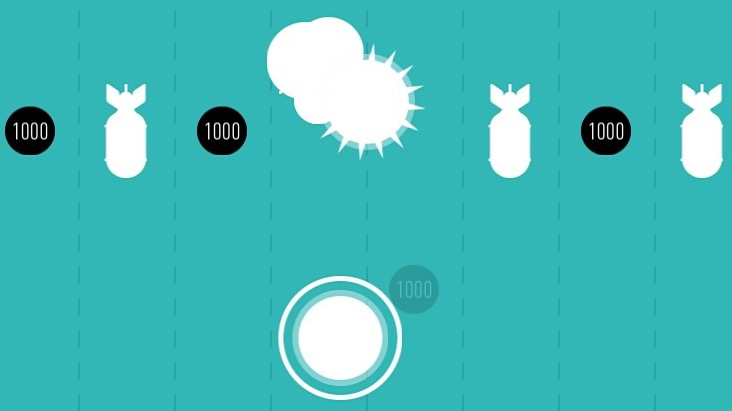
Games don’t get much more stripped down than Fingervals. Guide your fingertip through a vertical scrolling maze of bombs and pickups. There’s a really neat retro quality to Fingervals, from the lovely but simplistic graphics to its minimalistic but well placed audio. It also has a difficulty curve that’s very much associated with 80’s gaming rather than today’s more forgiving offerings. In many ways the challenge on offer leans towards the likes of the excellent Super Hexagon, which is absolutely fine by me and fits perfectly with the game’s old-skool feel. Fingervals is available for iPad and there’s a pocket version for iPhone too.

The Tapping Dead

Pixel art is all the rage these days and zombie platformer, the Tapping Dead, is a perfect example of those 8-bit graphics that we all love. The gameplay is also suitably simplistic, with a tap and hold mechanic being employed to help you guide the hero away from the game’s zombie infested cities. Your character automatically runs through each level, negotiating ladders and drops as they’re encountered. Touching the screen stops them in their track and is the only mechanism in place to stop you bumping into each of the level’s zombie inhabitants. Survival is about quick reaction and timing as you decide when best to halt your hero’s progress in order to avoid having your brain munched. With 150 levels on offer, there’s plenty to keep you entertained. The Tapping Dead is available for iOS and Android.

Zombie Apocalift

Staying with the zombie theme, Zombie Apocalift is a casual arcade game where you have to look after three survivors as they ride an elevator during a zombie apocalypse. Each survivor is armed and you must help them fend off the zombie horde that’s hellbent on bursting into the elevator and putting an end to your escape plans. The simple aim is to travel as high as possible in the elevator. To achieve that you’ll need to kill as many of the shuffling undead as possible as they try to prevent your escape. Weapons upgrades and player boosts are on offer and you’ll need to use them fairly across your team if you want to make it to the top. Zombie Apocalift is easy to pick-up and good fun. Check it out on the Apple App Store, Google Play, or the Amazon App Store.

Iron Force

Stage3D holds bags of promise but Flash and AIR are still very much seen as platforms for 2D games development. So it’s good to see the full potential of Stage3D being realised in Iron Force – a really cool multiplayer tank battle game. Pick from seven powerful tanks and battle online in a free-for-all or as part of a team. During your campaigns you can make various upgrades to your tank including increasing your firepower, speed, and rate of fire. With close to ten thousand ratings on the Apple App Store and an average score of five out of five, it’s a perfect example of what can be produced with AIR and the Stage3D API.

10 Steps to Learning ANE iOS Development

Over the past week or so I’ve been looking at Adobe AIR Native Extension (ANE) development. It’s something I’d been meaning to take a gander at for ages but never seemed to find the time. Plus on the surface, developing an ANE seemed a little intimidating. Well the good news is it’s not really that hard once you learn a few steps. The hard part is really finding the right documentation, tutorials, and example source code to get you going.

So if you’re interested in developing your own native extensions but don’t know where to begin, here’s a list of the resources that I found extremely useful. I’ve listed everything in the order you should tackle them.

1. Read ‘Programming in Objective-C Fifth Edition’

There’s no way around the fact that you’ll need to write some native code. If you’re new to iOS development then I strongly suggest you pick up a copy of Programming in Objective-C as the book serves as a really great introduction to the language. Of course there are many online resources for learning Objective-C but having spent some time with this book earlier this year I can honestly say it’s worth the money.

2. Consider reading ‘Learn C The Hard Way’

Adobe provide a native code API that is written in C, so you’ll need at least a little knowledge of the C programming language too. Objective-C is actually a superset of C, so you should get everything you need to know from the Programming in Objective-C book I recommended above. It has a section detailing the language’s underlying C features.

However, if you’d like to spend a bit more time with C then I recommend you take a look at Learn C The Hard Way, which is available online. It’s possibly a little hardcore for absolute beginners but a good refresher for those who haven’t done any C development in quite a while.

If you’re not familiar with Objective-C then I’m gonna say stop here and come back at least a few weeks from now. Sure you could probably write your own native extension by cutting and pasting from various online resources but there’s really no substitute for just rolling up your sleeves and learning a new language. Sure, Objective-C may look a little weird but it’s actually pretty easy to learn and a lot of fun.

3. Read Adobe’s official documentation

Okay, once you’re at least familiar with the basics of C programming it’s time to take a look through Adobe’s official Native Extension documentation. While the documentation is lacking somewhat in actual concrete code examples, what’s there is fairly comprehensive and to the point. At this stage you don’t need to fully understand it all but you should spend a few hours reading over everything at least once to familiarise yourself with the development process.

There’s a section detailing the C API for native extension development. You’ll need to use this API when developing your native extension but don’t worry too much since the C API is only required to create a bridge between your extension’s ActionScript code and your native implementation. Essentially what I’m saying is that you can use Objective-C for the majority of your development and only drop down to the C layer for some very specific things.

4. Walk through your first tutorial

Once you’ve scanned over the official documentation you’ll be ready to try and get something up and running. The best place to start is by following through a tutorial. There are a few good tutorials out there detailing how to write native extensions. I personally really liked Lorenzo Nuvoletta’s, who gives a fairly quick and concise set of steps complete with full source code and build scripts. The extension Lorenzo has you build is extremely simplistic (it returns a string from the native layer) but it covers the basics, you’re unlikely to slip up, plus you’ll learn a lot from it.

The good news is that if you’ve gotten this far then you’re well on your way.

5. Write your first very simple native extension

So once you’ve got Lorenzo’s native extension up and running, I suggest you take what you’ve learned and try writing a slightly more complicated version. Give your extension a few more methods and experiment with some more primitive types. You know how to return a string from the native side so try returning integers, numbers, boolean values, and arrays. Also, experiment by passing ActionScript primitive types into your extension and working with them.

All this will require you to work with the native extensions C API. Mastering this API will allow you to exchange data between your AIR app’s ActionScript and your native code. If you’re new to C programming then you may struggle a little to begin with. However, Adobe’s Tom Krcha has written an excellent three part tutorial explaining how to use the C API to transfer data from ActionScript 3 to C/Objective-C and back again. Unlike Adobe’s own official documentation, these tutorials have plenty of code samples that you can just lift and drop into your own code. If C isn’t your strong point then keep this tutorial open in your browser as you develop.

6. Dealing with compilation and packaging errors

There are a lot of steps when writing and packaging native extensions, so you’re likely to make mistakes. Unfortunately you can encounter some pretty obscure errors. Here’s an excellent resource detailing common errors you may encounter and how to fix them.

7. Examine the source code from other ANEs

Once you start feeling comfortable with the basics you’ll probably want to start doing some fancy stuff like layering native UI components over your AIR content or working with third-party iOS libraries. The best way to learn is to pop over to somewhere like GitHub and take a look at the many native extensions that have been open sourced.

I spent some time looking over the many native extensions that developer Richard Lord (Stick Tennis developer) has made available. You should also check out Fresh Planet’s (of Song Pop fame) many extensions. There’s tonnes you can learn just by looking over their source code. It’s also a great way to learn how best to organise the folder structure for your own projects.

8. Learn how to write build scripts

There’s a lot of jumping around when writing a native extension. One minute you’ll be compiling ActionScript, the next you’ll be inside Xcode writing Objective-C. You’ll also be using ADT to package everything together into the final .ane file. This means that making and testing your changes can take some time as you jump between IDEs and the terminal. If you want to be as productive as possible then you really need to spend some time writing a build script. It’ll save you so much time and will generally reduce your compile and testing time from several minutes to seconds.

As a starting point go back to Lorenzo Nuvoletta’s tutorial and take a look at his shell script. If you want to take things further (and you should) then consider writing an Ant script to do the bulk of your work. Take a look at the Ant scripts (this build.xml file on GitHub) in Richard Lord’s native extensions. For a quick introduction look over this tutorial, which lists seven things you need to know about Ant. It’s a really quick and simple guide to Apache Ant. There’s also a pretty good looking tutorial over on the net tuts+ site.

Writing build scripts isn’t essential when writing native extensions but it will save you so much time. Oh and I forgot to say: Apache Ant typically comes pre-installed on your Mac.

9. Other resources worth looking at

Most of the links I’ve mentioned above are those that I used on my journey into native extension development. There are however a few additional resources that are worth checking out:

10. What about Android development?

One of AIR’s benefits is the fact that you can target both iOS and Android. So how do you write the native Android component of your extension? Well that’s something I’ve yet to fully explore. If you do need your native extension to target Android then I suggest you take a look at Lee Brimelow’s excellent two part video tutorial (part 1 and part 2) that takes you through the process.

That’s about it. I hope you find the recommended resources useful. It probably looks like a fairly lengthy list but if you follow the steps then you’ll be able to write your own native extensions. Good luck and have fun!


Using Flash Pro in WeeWorld’s HTML5 Workflow

We’re targeting HTML5 more and more at WeeWorld but doing so has always been a problem for us. You see our illustrators and animators rely heavily upon Flash Professional. With our previous HTML5 and JavaScript projects we’d been left in a bit of a pickle because it just wasn’t possible to take our Flash content and easily drop it in. It would often end up with animation being taken out of the hands of animators and instead taken care of by us developer types who are quite honestly hopeless at coding up such things.

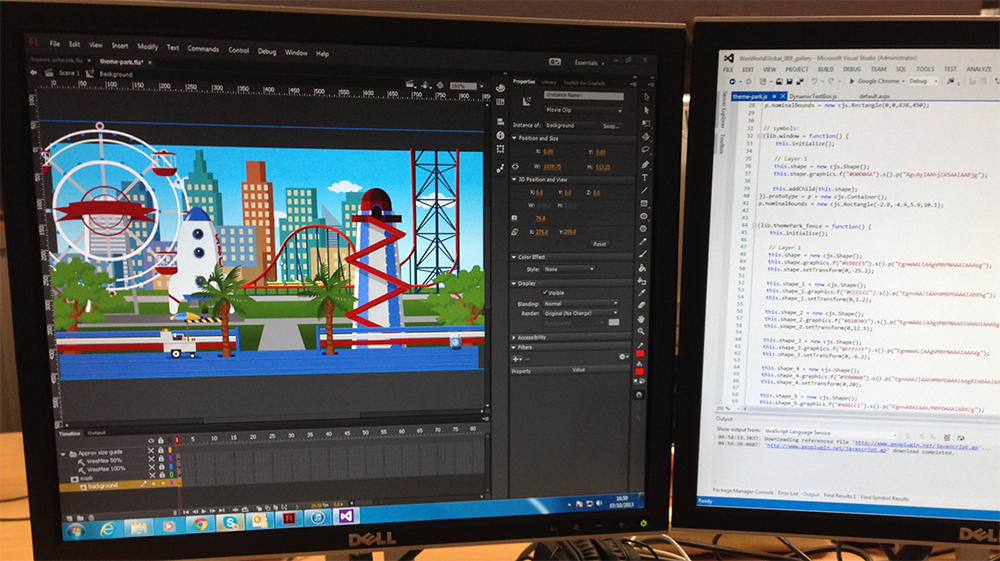
A background is created in Flash before being exported to JavaScript.

A few months ago we started a new project at WeeWorld that would allow our users to create photos of their WeeMee and friends. One of the requirements was for the user to be able to scale and rotate certain elements within their photo. Vector graphics would be ideal for the job but that would require Flash. Thankfully Flash Professional now supports HTML5 export via the excellent CreateJS framework. We were able to create rich vector artwork within Flash that could easily be integrated into our JavaScript projects, allowing users to scale and rotate that content without a loss of fidelity.

Watch this video of me making a really awesome photo.

ActionScript unfortunately goes out the window with this workflow and we were instead forced to write any interaction for our Flash content using JavaScript. However, considering we were embedding our content into a larger HTML5 project it made more sense to use JavaScript anyway. Plus, with the CreateJS framework being loosely based on Flash’s display list API, coding in JavaScript actually felt fairly familiar.

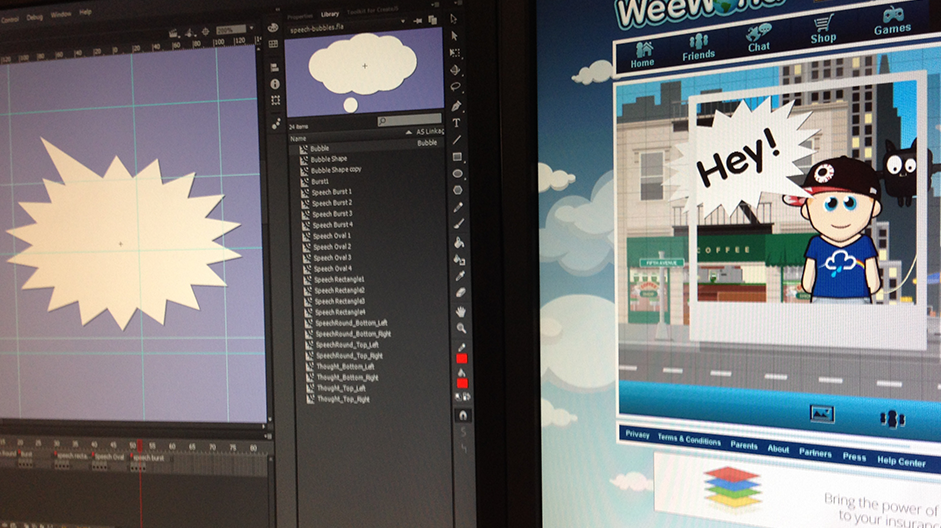
Here's a speech bubble designed in Flash (left) and how it looks within the HTML5 webpage (right).

I was pretty damn impressed by the performance of our vector content. Given how detailed much of it was and considering everything was being rendered by a layer of JavaScript, I was expecting the frame rate to take a serious hit. In the end, everything actually ran really well. And to be honest, across the whole project, we didn’t run into that many cross-browser issues either.

So all in all it was really good fun and it was great being able to use Flash Professional CC in our HTML5 workflow. If you want to give our photo editor a try then head on over to weeworld.com and sign-up. Alternatively just watch the video that I’ve embedded above.

Starling 1.4 Released

I’m a huge fan of the Starling framework, so it’s great to see that Gamua has just released Starling 1.4. And hot on its heels is version 1.1.1 of the Feathers UI framework, which sits on top of Starling and allows developers to create lightweight, skinnable and extensible UI controls for their mobile and desktop projects.

Here’s a list of the new features that Starling now provides:

  • 10% performance increase
  • Sprite masking with the new clipRect property
  • Displacement map filters
  • Enhancements to the Asset Manager
  • Support for 4K textures
  • MacBook Retina Support

For a more comprehensive list of features head over to the Gamua blog.

Personally it’s always good to see Gamua’s Daniel Sperl constantly squeeze more performance out of the framework. Daniel spent considerable time tracking down memory allocation issues with Adobe Scout to alleviate garbage collection overheads. Various other optimizations were also performed to increase display object performance.

I’m also delighted to see that it’s now possible to easily add rectangular masks to sprites with the new clipRect property. One of the strengths of clipping rectangles is that they are relatively inexpensive ways of performing masking.

Perhaps the most exciting feature is the addition of the DisplacementMapFilter class. All sorts of visual effects should now be possible including water reflections, swirling vortexes, image pixelation etc. In fact, here’s a nice demo illustrating just what’s possible.

So yeah, another solid release of both Starling and Feathers.

Away3D TypeScript

It looks like there has been some significant work going on to port Away3D to Typescript. For the last few months plugin.IO and Karim Beyrouti have been busy porting Away3D to JavaScript via TypeScript. The process has required reverse-engineering of the Flash framework and Adobe themselves have been on hand to help.

The nice thing about TypeScript is that it will make working with this port of Away3D feel fairly familiar for those coming from an ActionScript 3 background. And of course, targeting JavaScript means that you’ll be able to work outside the Flash Player, instead targeting HTML5 and WebGL. This fact alone will obviously help developers push content to compatible mobile browsers.

There’s still work to be done but you can get the current version of the code here on GitHub. Also, take a look at the following demos, which give a very good indication of the state of the project:

https://dl.dropboxusercontent.com/u/94775998/WebGL/Demo14/index.html
https://dl.dropboxusercontent.com/u/94775998/WebGL/Demo18/index.html
https://dl.dropboxusercontent.com/u/94775998/WebGL/Demo13/index.html

With the Starling framework also being ported to TypeScript it’s good to see another popular framework going in the same direction.

Mobile Workers Coming to Mobile

It has taken a while but it looks like mobile workers are finally going to see the light of day on Android and iOS. They were announced as part of the Adobe AIR 3.9 beta, which is now available for download. In fact, here are the features that you can try out right now:

  • Mobile Workers for Android
  • Mobile Support for Background Execution
  • iOS7 Support
  • Mac OS 10.9 Support
  • Android XXHDPI Icon Support
  • ActionScript Compiler 2.0 Integration

You’ll notice that mobile workers are only available in Android at the moment but a later download of 2.9 will also provide iOS support. Being able to run code in the background without interrupting your application’s main code is a huge feature.

Another interesting feature is that any apps built using Direct Render Mode will now support code execution even when the app is in the background. For example, you could write an app that continues to perform audio playback even after the user has exited the app and left it running in the background.

With the release of iOS7 imminent it’s good to see that AIR 3.9 will provide support for it. Oh and support for high resolution Android app icons is a welcome feature.

So yeah, pop along to Adobe Labs and give AIR 3.9 a spin.