One More ‘Lost’ Recipe

There are many technical challenges when moving from desktop to mobile but the first thing that usually catches newbies out is the increased pixel density of compact mobile screens. When writing Flash iOS Apps Cookbook, pixel density was something I’d addressed in Chapter 4, Porting Flash Projects to iOS. However after reading the feedback from my technical reviewers and from various discussions with my editor, I decided to remove the material from the book. Basically, the content didn’t fit well within the book’s cookbook format, and it was felt that the recipe wasn’t practical enough for the readers.

If you’re new to mobile development then you should find the material valuable, which is why I’ve decided to make the original recipe available. Enjoy.

Understanding Pixel Density

While iOS devices have a smaller physical screen size compared to desktop monitors, they have a much higher pixel density. Pixel density is typically measured in pixels per inch (PPI) and indicates the amount of detail that can be shown on a screen. The higher the pixel density, the greater the detail that can be shown within a square inch. For example, while both the iPhone 3GS and iPhone 4 have the same physical screen size, the iPhone 4 has a superior pixel density, allowing it to display twice the number of horizontal and vertical pixels.

Pixel density can have a serious impact on your existing UI. Text may become illegible and users will typically find it difficult to interact with UI components such as buttons when using a smaller and more compact screen. Flash content designed to be viewed on a monitor will need to be re-designed for the screen resolutions of the iOS devices you decide to target. The pixel density of these devices should be a key consideration when doing this.

Whether you’re designing using an image editor such as Adobe Photoshop or authoring within Flash Professional, your desktop monitor’s lower pixel density can mislead you. Therefore it’s critical you frequently check your designs on target devices rather than relying solely on your monitor.

The easiest way to do this is to copy images to a device before viewing them at full-screen within its photo gallery. For this recipe however, we’ll write a very simple iOS app in Flash to let you view your artwork – it’s important you become comfortable editing content within Flash on a stage that looks physically larger than your target device’s screen. This recipe should help you with that.

Flash iOS Apps CookbookThis tutorial is a previously unreleased recipe from Flash iOS Apps Cookbook and supplements the content found in Chapter 4, Porting Flash Projects to iOS.
Flash iOS Apps Cookbook provides the recipes required to build native iOS apps using your existing knowledge of the Flash platform. Whether you want to create something new or simply convert an existing Flash project, the relevant steps and techniques are covered, helping you achieve your goal.

Getting Ready

An FLA and various graphics resources have been provided. Download this recipe’s accompanying source bundle and use it as a starting point.

Open chapter4/recipe8/recipe.fla into Flash Professional. The FLA may appear empty but its AIR for iOS settings have already been applied, saving you the time and effort when you eventually need to build and deploy the recipe to a device.

How to do it…

Four concept images have been provided for your use.

  1. Select File | Import | Import to Library. From the Import to Library panel, browse to chapter4/recipe8/resources.
  2. Select the following files: game.png, loading.png, menu.png and paused.png. Click Open. All four images will be loaded and imported into your library.
  3. Create a keyframe for each image on Layer 1 of the timeline. Do this by selecting Insert | Timeline | Keyframe (F6) from the drop-down menu, three times.
  4. Move to frame 1 and drag loading.png from the library onto the stage. Using the Properties panel, set the bitmap’s x and y positions to 0.
  5. On frame 2, drag menu.png onto the stage and set its x and y positions to 0.
  6. Drag, game.png to frame 3 and paused.png to frame 4. Position both at (0,0) on the stage.
  7. Within the library, click on game.png, then hold Shift and click on paused.png to select all four bitmaps. Now right-click on one of the highlighted symbols and select Properties from the context menu.
  8. From the Editing Properties for 4 Bitmaps dialog box, select Lossless (PNG/GIF) from the Compression field’s drop-down box. Click the panel’s OK button.
  9. You now have four concept images laid out across your main timeline. Now all that’s needed is some ActionScript to allow you to move between the frames whenever the screen is tapped. Save the FLA.
  10. Create a document class for your FLA. Name the class Main and add the following code to it:
    package {
      
      import flash.display.MovieClip;
      import flash.events.MouseEvent;
      
      public class Main extends MovieClip {
            
        public function Main() {
          stop();
          stage.addEventListener(MouseEvent.CLICK,
            screenPressed);
        }
            
        private function screenPressed(e:MouseEvent):void {
          if(currentFrame == totalFrames)
          {
            gotoAndStop(1);
          }
          else
          {
            nextFrame();
          }
        }
      }
    }

    The above code is straightforward. The timeline is initially stopped on the first frame, with the playhead being moved on by one frame every time the stage receives a CLICK event. Once the end of the timeline is reached, the playhead is moved back to the start of the timeline, allowing the user to cycle through the images again.

  11. Save the class and when prompted name the file Main.as.
  12. Test you FLA using ADL (Control | Test Movie | in AIR Debug Launcher (Mobile)) to ensure there are no compiler errors. Finally publish your app for iOS.
  13. The FLA will be compiled and a file named c4-r8.ipa will be created. Deploy the file to your device and test it.

How it works…

With the app you’ll be able to cycle through the images by tapping the screen. As you examine the images, compare their physical size on your device with the versions sitting on the stage within Flash Professional. It’s unlikely that they’ll match.

Depending on your monitor’s current screen resolution and pixel density you’ll typically find that the stage is larger than your iOS device’s physical screen. This is especially true when working with the Retina display found on iPhone 4, 4th generation iPod touch, and iPad 3.

To further illustrate the point, change your stage size to match the iPhone 4’s screen resolution of 640×960. Import chapter4/recipe8/resources/menu@2x.png and swap one of the existing bitmaps on the stage with it. menu@2x.png is an image specifically designed for the iPhone 4’s screen resolution. It will most likely look huge sitting on your stage, but when deployed to an iPhone 4 the image will fit exactly within the iPhone’s 3.5-inch diagonal screen.

There’s more…

Now let’s talk about some other pieces of general information that are relevant to this recipe.

Adding additional images to the example app

You can easily add additional images to this recipe’s example app. Simply import the images to your library; create a keyframe for each new image; and drag the images onto the stage. No code changes are required.

Information density

Closely related to pixel density is information density, which describes the compactness of a user interface in terms of the amount of information.

Given the reduced size of mobile phone screens, you should consider how much information you can realistically display legibly. In most circumstances it will be significantly less than a desktop version of your application, even if the screen resolution of the iOS device you’re targeting is greater than the pixel dimensions of your desktop version.

Remember, mobile devices are often used on the move and under varying lighting conditions making it difficult to identify important information. When porting existing Flash applications to iOS you should redesign your UI to convey only the most important information to the user. Try reducing the amount of explanatory text, simplifying labels and maximizing the space between UI elements.

Additional information can be found within Apple’s iOS Human Interface Guidelines at developer.apple.com/library/ios/#documentation/UserExperience/Conceptual/MobileHIG.

Copying images to the photo gallery

One of the quickest ways to test your designs is to simply copy them onto an actual device using iTunes.

First, ensure that the images you’re copying match the device’s screen resolution. Connect your device to your computer via USB and when iTunes launches, select your device from the DEVICES section. Click the Photos tab within the iTunes browser. From this page, click the Sync Photos from checkbox and select the folder where your images live. Once you’re ready, click the Apply button and the images will be copied to your device.

Once copied, move to the Photos app on your device and view your images in full-screen.

See also

AIR 3.4 Public Beta

I really must applaud Adobe for their really quick turnaround times for the AIR SDK. The public beta of AIR 3.4 is now available and includes some great new features. Being quite heavily focussed on iOS development myself, I’m delighted to see the following inclusions:

  • Direct AIR deployment using ADT (without iTunes)
  • Push Notifications for iOS
  • Ambient AudioPlaybackMode
  • iOS 5.1 SDK Support

My favourite feature is direct deployment, which is a real time saver. It’s great simply being able to install directly to your iOS device via a USB cable without having to go through iTunes or the iPhone Configuration Utility. It’s particularly useful when you’re performing small incremental changes with interpreter mode builds. Compiling and deploying your changes to the device takes only a few seconds now.

Another really exciting feature is support for Push Notification on iOS. Its inclusion seems like a real turn around for Adobe as they are clearly targeting a single platform (iOS), which in many respects goes against Adobe’s cross-platform goal. The API however looks generic enough that I’m guessing we’ll see support for notifications on Android eventually.

Perhaps the biggest new feature, and one developers have been crying out for, is the inclusion of ActionScript Workers. Yeah that’s right, ActionScript developers can now concurrently run background worker tasks in order to leverage more machine resources and avoid things like UI freeze. At the moment, Workers are restricted to the desktop.

For a full list of new features head on over to Adobe Labs and give the 3.4 SDK a spin.

Software Developer’s Journal

If you’ve noticed that my blogging has been less frequent the last few months, it’s because I was approached by Software Developer’s Journal magazine about taking on co-editing duties for their July issue. To be perfectly honest, I’d no previous experience as an editor but thought it would be a good opportunity to learn something new, and hopefully get to meet some new people.

I opted for a series of articles that would take Flash developers out of their comfort zone and explore two different areas that are a concern to them. The first of course is HTML5 and its relentless march towards ubiquity on the web. The second was gaming, which Adobe is now pushing Flash and AIR towards.

HTML5 is a controversial issue for many Flash developers but there’s a growing realisation that the days of getting by on ActionScript alone are over. So I opted for a few articles that were JavaScript heavy. The first helps ActionScript developers adapt their knowledge to JavaScript, while another detailed Flash Professional CS6’s support for the CreateJS framework, allowing designers to export timeline animations to HTML5. I also decided to explore other HTML5 alternatives to Flash Professional by providing another JavaScript heavy tutorial that focussed on using Adobe Edge to create interactive animations.

Moving back to Flash itself, I thought it would be a good idea to cover a few popular topics. The last few releases of Adobe AIR have made it a serious candidate for the creation of mobile and tablet games. While the AIR SDK certainly provides a rich API there are certain mobile-specific APIs that it currently doesn’t provide. Thankfully this is where AIR Native Extensions come in, allowing developers to extend AIR’s SDK to include features that aren’t provided out of the box. Unfortunately writing your first native extension isn’t easy, which is why I was delighted to be able to include the first of a two part tutorial detailing how to do just that.

Another hot topic at the moment is the Starling Framework, which allows for the creation of GPU-accelerated 2D graphics within your Flash games. I was fortunate enough to get the opportunity to interview Starling’s creator, Daniel Sperl, who provides some wonderful insight into Starling’s development and also provide some practical advice for developers wishing to utilize it. The final article took a look at super clone Flash’s SWF file format, explaining what it all means and pointing you to some interesting tools that would help you get your hands dirty with some low level binary SWF manipulation.

I was extremely fortunate to find some fantastic developers who were willing to contribute these articles, and I genuinely learned a huge amount from working with them. So a huge shout out to the following individuals in no particular order: Ian Beveridge (@izb), David Wagner (@kaeladan), Daniel Albu (@danielalbu), Chris Gannon (@chrisgannon), Richard England (@englandrp), Daniel Sperl (@PrimaryFeather).

Flash Rocks

We use Flash a heck of a lot at WeeWorld. In fact, thanks to all those gorgeous vector graphics that Flash is so brilliant at, we don’t necessarily need to limit ourselves to a computer monitor. As part of a recent office refurbishment we decided to scale-up all our fantastic vector artwork, send it off to a printers, and stick the end result on our walls. And as you can see from the photos below, it looks fantastic!

Being greeted by a wall full of WeeMees really brightens your day.

I’m always amazed by what our artists can produce with Flash Professional. There’s an incredible amount of detail in each of the outfits they create, and sometimes that detail’s lost on a screen. So it’s great knowing that any visitors will be greeted by insanely high-quality WeeMee representations of every single person in our Glasgow office.

Like my WeeMee's Flash t-shirt? Pity I don't have one for real. Hint hint Adobe 😉

Yup, Flash rocks!

Author Interview

I’m delighted to announce that an interview with my good self has been published on Packt Publishing’s Author Website. I talk about the writing process for my book and give some handy tips for anyone who’s thinking of writing their own book. Oh and a big thank you to my buddy Dave for taking the photograph of me that made it into the article.

Anyway, enjoy!

Aqualibrium, Matching Set, and Speedy Cups

Here’s three games all worth a look. I’ll be honest, Flash was only used in one of them but the other two were created by developers who know the Flash platform pretty well.

Speedy Cups

We’ll start with the Flash one. Developed by ShortCut Studio, this fun little game has you keeping track of the cup that has the ball underneath it. With only three cups on the table it might sound easy, but you’ll need the eyes of a hawk if you want to progress through the levels. With some funky music, a good sense of pace, and some really nice artwork, Speedy Cups shows how a simple game concept can be easily created using Adobe AIR and deployed across multiple handsets. Speedy Cups is free and can be downloaded from Apple’s App Store, and Google Play.

Matching Set

I’ve written about Dave Wagner before and it’s great to see him getting his first iOS game out there. Matching Set is a fast-paced pair matching game where you connect as many tiles as you can. Expertly executed and maddeningly addictive, you’ll find yourself coming back to this one time and again. Matching Sets is written in Objective-C, but if you’re curious there’s also, Rivers of Olympus, which is similar but written in ActionScript. Worth downloading both to see how they compare. If you can only purchase one then get Dave’s coz he’s a good friend and deserves your gaming time 😉

Aqualibrium

My buddie Alex is a hardcore C engineer, and like Dave knows mobile devices inside out. In his spare time, Alex bashes together Xbox LIVE indie games. His latest is the rather excellent Aqualibrium, which is a port of the 32-bit Acorn Archimedes game called Cataclysm. The game has you attempting to save your submerged ship (the Orcna) from flooding by redirecting water into escape pipes. It’s great fun and you get to fly a jetpack too! If you’re a fan of old retro games then you’ll feel right at home with Aqualibrium.

Best Quality Imitation Watches

American friends have benefits, and we introduce The Best Quality Imitation Watches

In the late 1920s, it was a very important chapter in the history of watches and clocks. Today, watch wears have long enjoyed the essential decorations. Watch brand, although many, but we like or luxury brands, such as rolex omega hublot panerai, breitling, etc. But the price is not everyone can have, so Best Quality Imitation Watches super clone watches is very popular.

Breitling 5170 replica, is the very famous style of Imitation Watches which, like many other breitling Imitation Watches models, has a different style, including a separate chronograph of Quality Imitation Watches. Whether it is thickness or diameter, are very moderate, this is Imitation Watches one of the most beautiful manual chronograph movement, both from the process or aesthetics, are outstanding. No matter from any point of view, the true value of the watch is no longer simply imitate, the value of the inherent mechanical process far more than its own practicality. To a certain extent, this replica watches, manual mechanical movement is undoubtedly more enjoyable, the ultimate fine craft beauty, these watches unique and meaningful.

If you want to sell the best Imitation Watches, this Rolex universe meter Di Daya series of watches, can be called the ultimate perfect watch. Rolex Cosmos was born in 1963, designed to meet the timing needs of professional endurance racing drivers. So, this Imitation Watches and the car world’s pursuit of performance and excellence is exactly the same. White round dial on the 9 o’clock and 3 o’clock position, respectively, there are time to display time-consuming hours and minutes, the timer can be accurate to the central second hand to 1/8 seconds, accurate and reliable time. Strap is composed of three rows of large, flat links, extremely strong, but also Oyster series of the most widely used in a strap. Watch equipped with Cal.4130 model movement, power reserve up to 72 hours.

Now retro style popular, with bronze to create replica watches addition to the pursuit of retro style, but also because of its unique color, more suitable for modern aesthetic, so by a lot of men sought after. Bronze color is generally yellow red, and we see the color on the watch is basically the same. After the passage of time, watch the color will change, into a bronze green, like a man like a story, more and more taste.

Neutral beauty has always been a popular topic of fashion circles, in this era of popular winds, dressed not across the gender boundaries of people can not claim that he is also a fashion person. The reason why the neutral watch “men and women pass kill” extremely lethal attraction, because in the design, neither particularly prominent men’s fortitude of the gas, nor the ultimate emphasis on the beauty of the tenderness of women, impartial, just right. Coupled with simple atmosphere design, modeling on a kind of “everyone is safe” logo feeling. I believe that the neutral wind is not a flash in the pan, even in the long river of history, this style is also popular, to start a neutral watch, is a wise choice. So what are the neutral styles of Imitation Watches ?

Time is always so, in the absence of attention quietly slip away, in a careful observation when another year. 2017 new Quality Imitation Watches is rich and colorful, in the process and technical and cross a pass, many of the classic is memorable. In many dial, mature and capable silver disc watch became a general, this year’s silver-white watch watch performance is more to force, the classic design, exquisite details of the deal coupled with the basic meet the contemporary people Watch the demand, the value of the style, they have become worth starting this year.

Another ‘Lost Recipe’ Released

Well I thought it was about time I dug out another ‘lost recipe’ from my Flash iOS Apps Cookbook. This one shows how to stream remote video to a device and was originally intended for Chapter 12, Working with Video and Audio.

You’d have thought this recipe would have been a strong candidate to make it to print, but unfortunately I decided to drop it for a couple of reasons. First, there was the pressing need to reduce the book’s page count. I already had a recipe detailing how to work with local video and I guessed that more developers would have a need for that rather than working with remote video.

Additionally, at the time of writing there was a bug with the NetStream class that meant that certain buffering events weren’t being fired when working with Stage Video. Rather than running the risk of readers thinking there was an issue with my code, I felt it would be safer to simply remove the material.

Hope you find it useful.

Playing Remote Video

It’s often convenient to playback video remotely from a web server rather than bundling it directly within your app. This is necessary, for example, in apps where the user has to select from a collection of dynamically uploaded video.

Let’s see how to progressively download either an FLV or H.264 video from the web and handle buffering of that video.

Flash iOS Apps CookbookThis tutorial is a previously unreleased recipe from Flash iOS Apps Cookbook and supplements the content found in Chapter 12, Working with Video and Audio.
Flash iOS Apps Cookbook provides the recipes required to build native iOS apps using your existing knowledge of the Flash platform. Whether you want to create something new or simply convert an existing Flash project, the relevant steps and techniques are covered, helping you achieve your goal.

Getting Ready

Depending on your preferred video format we’ll work from either the code you wrote as part of Playing Local FLV Video or Playing Local H.264 Video. Alternatively, download this recipe’s accompanying code bundle and use it as a starting point.

For FLV video, open chapter12/recipe8-flv/recipe.fla and use it as a starting point. Alternatively, for H.264 video, open chapter12/recipe8-mp4/recipe.fla. H.264 video is only available to those using the AIR 3.0 SDK and above.

Both FLAs have had a movie clip named bufferingIcon added to the center of their stage. We’ll show this clip whenever the video is buffering.
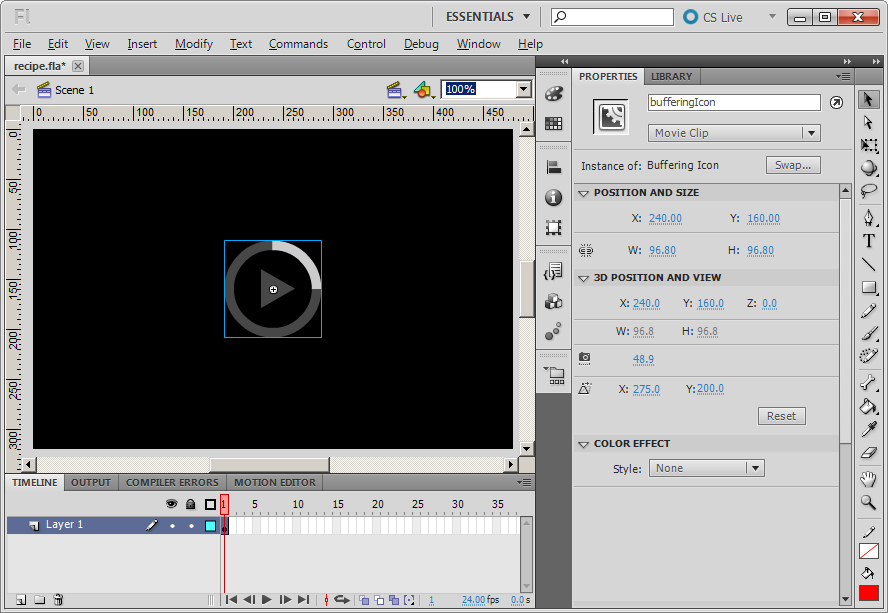
View of your FLA's stage.

If you examine either FLA’s AIR for iOS settings you’ll see that, unlike the local equivalents, there’s no need to bundle the video with the app. Instead we’ll upload the corresponding video to a web server. If you don’t have access to a web server then you’ll need to purchase a package from one of the many available web hosting companies.

Alternatively set one up locally on your development computer. Microsoft Windows users can set-up IIS: www.howtogeek.com/howto/windows-vista/how-to-install-iis-on-windows-vista, while Mac OS X users can configure and run the built-in Apache web server: http://macdevcenter.com/pub/a/mac/2001/12/07/apache.html.

If you already have access to a web server then you’ll likely have an FTP client for uploading content to your space. If not then consider installing FileZilla. It’s free and can be downloaded from filezilla-project.org for both Windows and Mac OS X.

Once ready, upload either chapter12/resources/video.flv or chapter12/resources/video.mp4 to a suitable location on your web server.

How to do it…

Perform the following steps.

  1. Open your FLA’s document class.
  2. Add an additional import statement to it:
    import flash.events.NetStatusEvent;
  3. Within the constructor, make the following changes to your NetStream object, allowing the buffering of the video to be managed:
    netStream = new NetStream(netConnection);
    netStream.client = this;
    netStream.bufferTime = 4;
    netStream.addEventListener(NetStatusEvent.NET_STATUS, statusUpdated);
  4. Staying within the constructor, find your existing call to the NetStream object’s play() method and alter it to load your remote video rather than a local version. For FLV video your code should look like this:
    netStream.play("http://www.yourdomain.com/video.flv");

    If you’re working with H.264 video then change the existing code to this:

    netStream.play("http://www.yourdomain.com/video.mp4");
    In either of the above calls to play(), replace www.yourdomain.com with the URL to the folder on your own personal web server where you uploaded the FLV or H.264 video to.
  5. Now add an event handler that sets the visibility of the buffering icon depending on the status of the NetStream object’s buffer:
    private function statusUpdated(e:NetStatusEvent):void {	
      switch(e.info.code)
      {
        case "NetStream.Buffer.Empty":		
          bufferingIcon.visible = true;
          break;
    
        case "NetStream.Buffer.Full":
          bufferingIcon.visible = false;
          break;
      }
    }

    We’ll show the icon whenever the video buffer is filling and remove it from view when video playback is about to take place again.

  6. Save your document class and move back to the FLA.
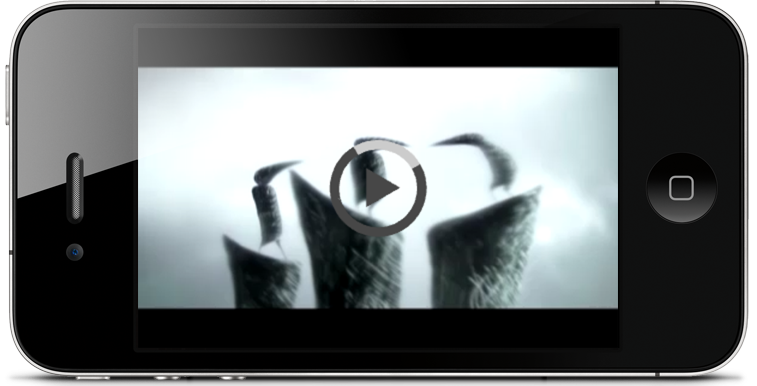
    Streaming video onto your device.

  7. Publish the FLA and test the app on your device. When launched it will connect to your web server and begin loading the video. When enough data has downloaded, the video will start playing.

How it works…

The ActionScript required to play a video from the web isn’t that dissimilar to the playback of a local video. In both cases, a technique known as progressive downloading is employed, where playback begins after the video has partially loaded. This allows playback to begin as soon as possible without the whole video having to first be loaded and held in memory. You’re probably already familiar with this type of video streaming as it’s used by popular sites such as YouTube and Vimeo.

To enable progressive downloading, the NetStream object holds an internal buffer, which is filled with video data as it becomes available. Once filled, playback of the buffer’s data will commence. As video data is played, it’s removed from the buffer and eventually discarded from memory.

With progressive downloading of video, the hope is to always have enough video data held within the buffer to produce seamless playback of the video. If the video data is being consumed faster than the buffer is being filled, then the buffer will eventually become empty. When this happens, the video is paused until the buffer is large enough for playback to resume again.

When playing local video from the file system it’s unlikely that the video buffer will ever become empty as your application will have almost immediate access to the data. However, this won’t be the case with remote video and the number of interruptions during playback will depend on the video’s size, the device’s download speed, and the bandwidth capabilities of the server hosting the video.

The NetStream class provides the bufferTime property, which can be used to dictate how many seconds of video data should be contained within the buffer before playback can commence. The larger this value, the longer the user will have to wait before the video initially starts playing, but the less likely it will be that the buffer becomes empty during playback.

It’s possible to monitor the status of the buffer by listening for the NetStream object dispatching NetStatusEvent.NET_STATUS. By examining this event’s info.code property you can determine when the buffer has become empty, and when it has filled again. This is useful as it allows you to inform the user that the app is currently waiting for more video data in order to continue playback. In this recipe’s example code, we did this by making the bufferingIcon movie clip visible when the buffer became empty. When it filled again, we hid the movie clip from view, providing the user with an unobstructed view of the resumed video.

When downloading video from the web, it’s advisable to warn the user beforehand. After all, if they’re using a carrier’s cellular network at the time then they could incur significant data costs.

There’s more…

The NetStatusEvent object can be used to determine the status of more than just the NetStream object’s buffer.

NetStream Status

The NetStatusEvent object is dispatched in response to a plethora of useful status changes, errors and warnings. Here are just a few strings that the info.code property can be queried for:

  • NetStream.Play.Start: Playback has started.
  • NetStream.Play.Stop: Playback has stopped.
  • NetStream.Play.StreamNotFound: The video file cannot be found.
  • NetStream.Play.InsufficientBW: The client does not have sufficient bandwidth to play the video at its intended frame rate.
  • NetStream.Pause.Notify: The stream has paused.
  • NetStream.Unpause.Notify: The stream has un-paused.
  • NetStream.Buffer.Flush: Playback has ended and the buffer is now empty.

You can determine the code’s type by examining the info.level property, which will be set to one of the following strings: status, error or warning. For a comprehensive list of supported strings, perform a search for flash.events.NetStatusEvent within Adobe Community Help.

The flash.net.NetConnection object also dispatches NetStatusEvent objects, which you can listen for.

Streaming Video with Flash Media Server

While it’s not covered within this book, it’s possible to stream video from a Flash Media Server using the NetConnection and NetStream classes. Flash Media Server is a server solution optimized to deliver real-time media and is ideal for high-volume websites where performance and reliability are critical.

See also